 Retake Pro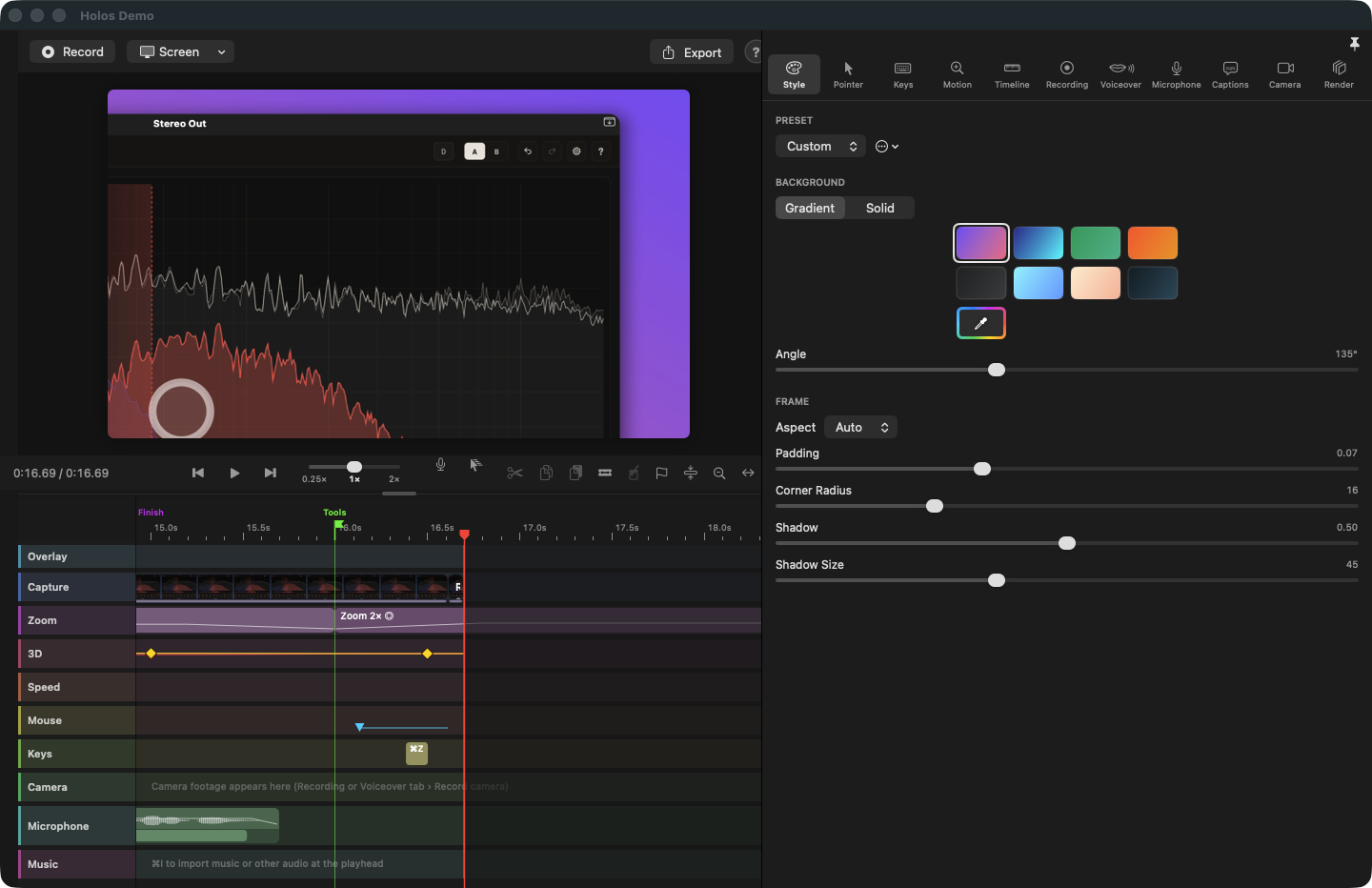
Features
Retake Pro covers the whole job of making a screen recording into a video: capturing it, editing the picture and pointer, adding narration and captions, and exporting the result.
Recording
- The whole screen, a single window or an area of the screen may be recorded. An area is dragged out once, moved and resized until it is right, and then kept for the next recording. The Dock, the menu bar and the desktop icons can be hidden, and a single window is captured with its rounded corners.
- Computer sound, a microphone and a camera are recorded together or separately, each on its own track.
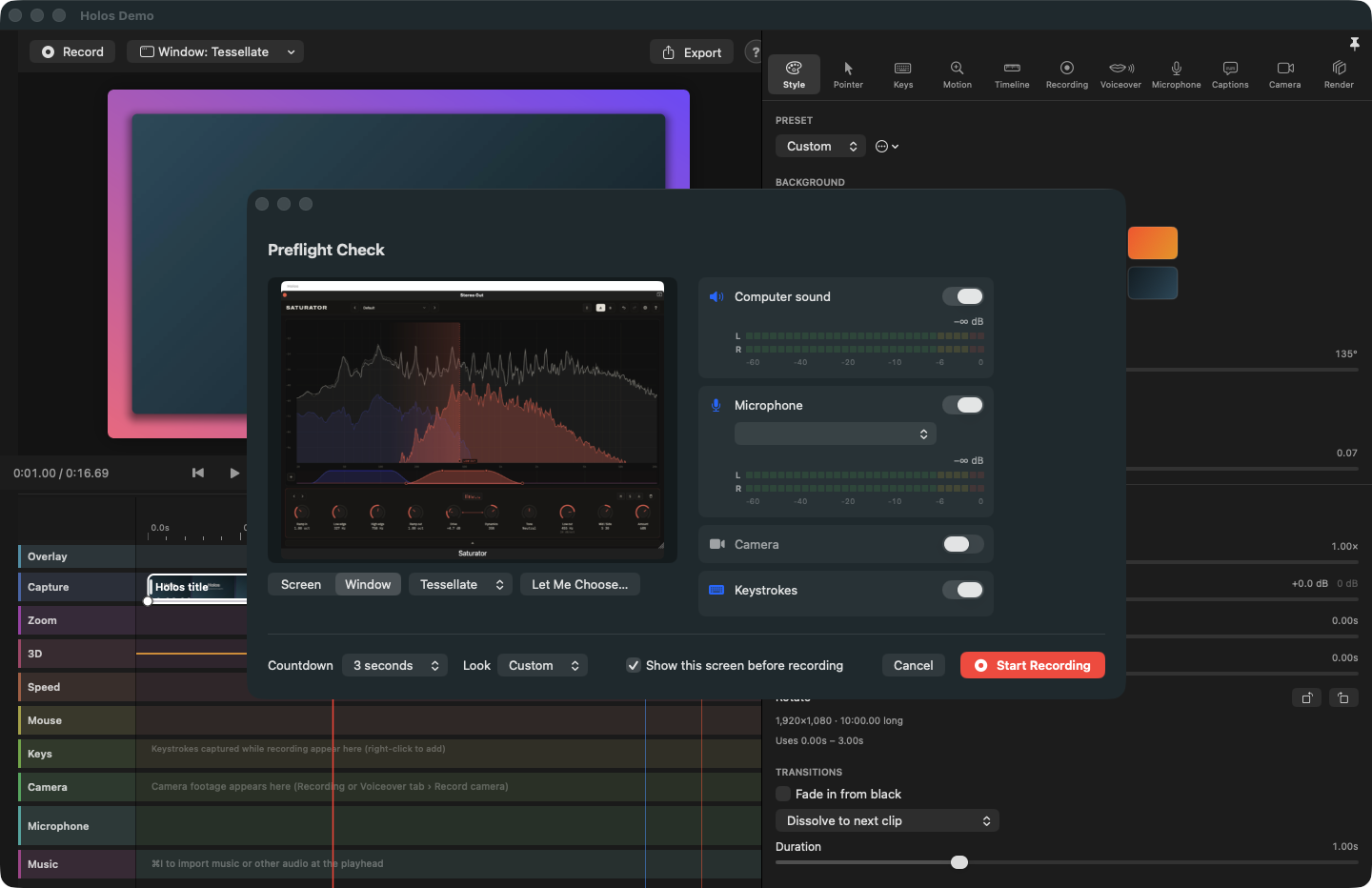
- The Preflight Check shows what will be captured, with live previews and level meters, before recording starts. A countdown, a recording bar, a menu-bar icon and a global shortcut (⌃⌥⌘R) are available.
Zooms, pointer and 3D rotation
- Zooms are added automatically on clicks and typing, or drawn by hand along the Zoom lane, each with its own amount and easing, and aimed at the pointer, at a fixed point, or at a pin shared with other zooms.
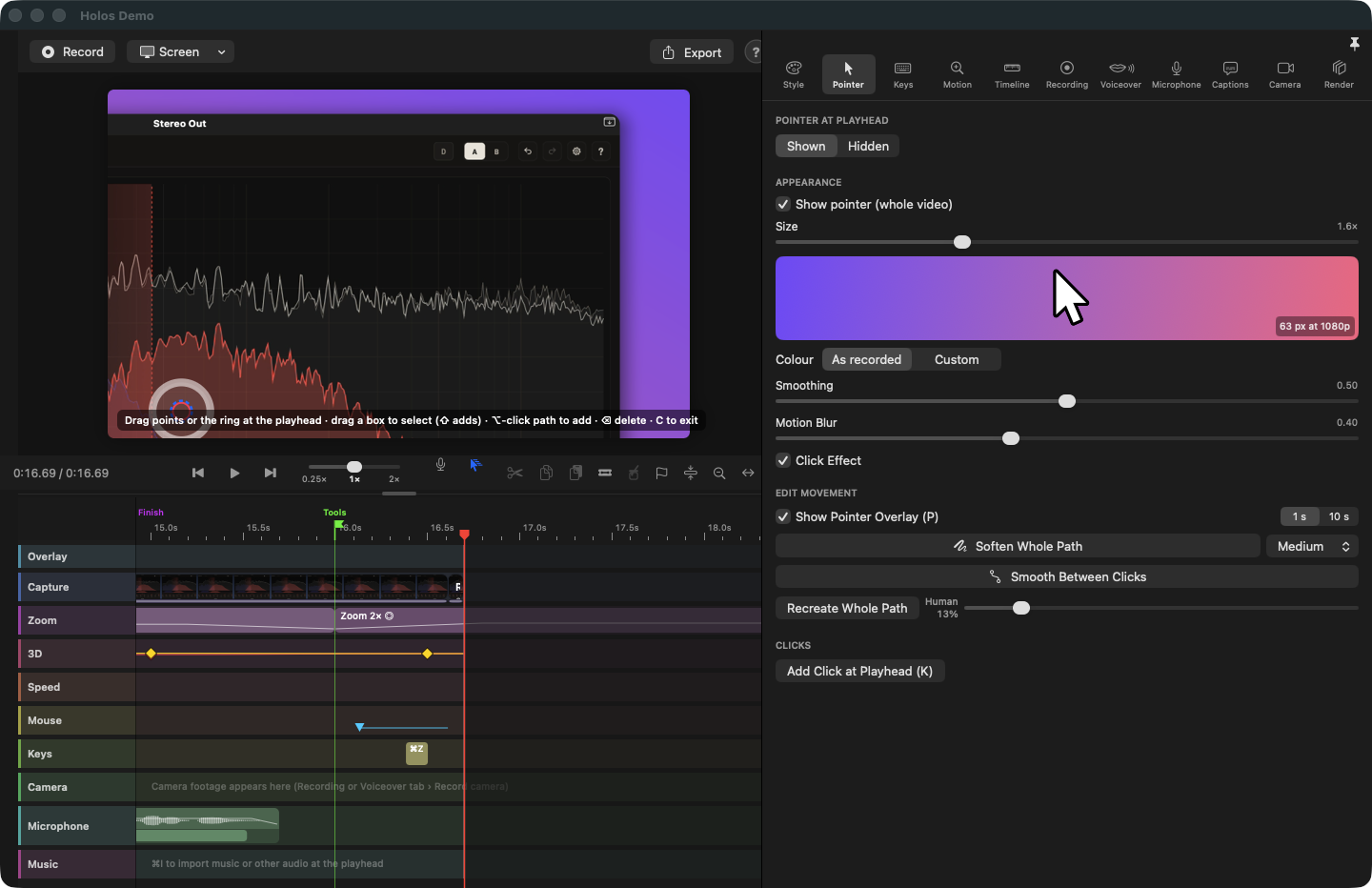
- The recorded pointer path can be edited with keyframes and smoothing, given click rings, and reshaped directly on the preview.
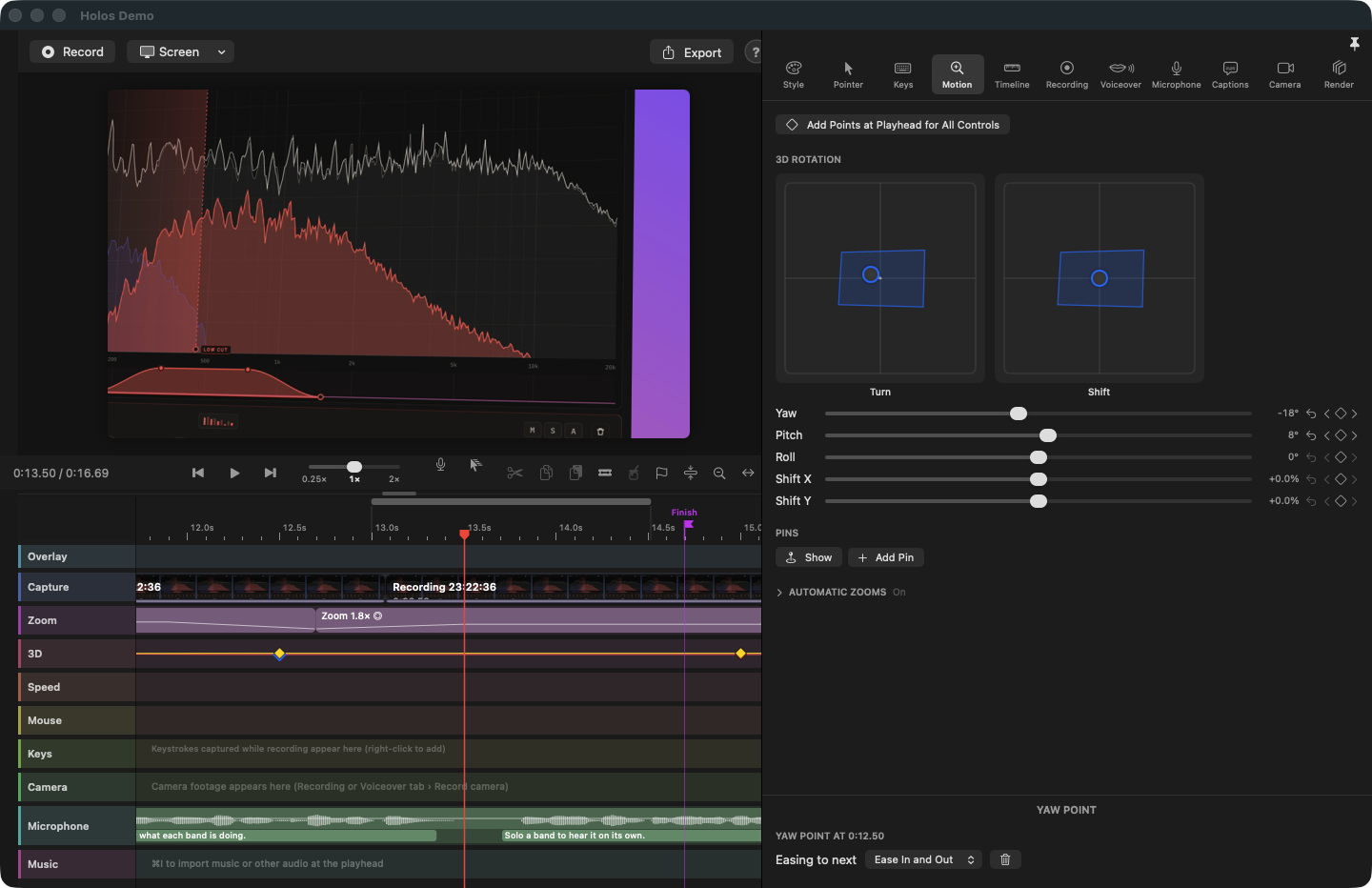
- The picture can be turned and shifted in three dimensions by keyframes, and the pointer follows it.
- Speed changes and freeze frames are set on their own lane, with ramps.
- Any lane can be turned off while you work, and the preview plays at anything from a quarter speed to double.
Editing
- The timeline has lanes for the capture, overlays, computer sound, zoom, speed, pointer, keys, camera, microphone and music, with named markers, snapping and undo. Clips can be cut, trimmed, rolled, joined, copied and pasted.
- A keystroke overlay shows the keys that were pressed during the recording.
- The camera appears as a bubble, with its background blurred or removed.
- The style of the video covers the background, frame, padding, corner radius, shadow and aspect ratio, from 16:9 to 9:16, and can be saved as a preset. Picture transitions and fades are provided.
- Pictures and movies may be dropped from the Finder onto the timeline for title cards and additional footage, or laid over the video on the Overlay lane.
- Ellipses, rectangles with rounded corners, text boxes and blurs can be laid over the video on the Overlay lane, as many at a time as required. Shapes have fill and outline colours; text boxes have any installed font, with its size, weight and colours; a blur is rectangular or elliptical and blends into the picture over a soft edge.
- Each overlay can fade in and out, and move, resize and turn along keyframes, with ease in and ease out set for each keyframe.
- The preview can be shown full screen, with its own timeline bar and transport controls, which fade while the mouse is still.
Narration and captions
- A voiceover can be recorded in the editor over the video. It is transcribed on the Mac into captions that can be edited.
- Captions are drawn in the video in nine animation styles, including word-by-word highlighting, words flying in and a typewriter, in any font installed on the Mac. They can also be exported as SRT or WebVTT subtitles.
- The video can be edited from its transcript: deleting words cuts that stretch of picture and sound. Long pauses can be shortened and filler words removed.
- Music can be added, with ducking, volume and fades.
Export
- Videos are exported as MP4 in H.264 or HEVC, at up to 4K and 60 frames per second, or as an animated GIF.
- Captions can be exported separately as SRT or WebVTT subtitle files.
Privacy
Retake Pro has no account and uploads nothing. Recordings, projects and exported videos are written to the folders you choose, and transcription uses Apple's speech recognition on the Mac. The app's only network request of its own is the check for updates. The privacy policy gives the details.
Download
Trial Mode
Without a licence, Retake Pro runs in Trial Mode. Every feature works, there is no time limit, and recordings of any length can be edited and exported. A project that uses any of the Full Version features cannot be exported until a licence is activated. Those features are:
- pointer path editing
- automatic zooms
- 3D rotation
- the keystroke overlay
- captions in the video
- camera background removal
- 4K or HEVC export
They can be used and seen in the preview in Trial Mode, and the Export sheet lists any that a project uses. Nothing is watermarked.
Documentation
The user manual (PDF) describes every control. The same manual is included in the app, together with contextual help. Changes in each version are listed in the release notes.
Price
One-off payment, in the currency chosen on the purchase page.
- The licence is perpetual and is issued to one named person.
- It may be used on every Mac that person uses.
- There is no subscription and no account to create.
- The key is verified on the Mac; no activation server is involved.
- Updates are installed from within the app.
Payment is processed by Stripe. The licence key is shown on the confirmation page and sent by email straight after payment.
Questions
Is there a time limit in Trial Mode?
No. Trial Mode has no time limit and no limit on the length of a recording or an export. The only restriction is that a project which uses a Full Version feature cannot be exported without a licence.
Can I use it on more than one Mac?
Yes. A licence is issued to a named person, and that person may use it on every Mac they work on. Please do not share the key with others.
What if I lose my key?
Write to [email protected] and it will be re-issued.
Does it need to be online?
No. The licence key is verified on the Mac and no server is contacted during activation. The app checks for updates when it is online.
How does Retake Pro relate to Retake on the Mac App Store?
Retake Pro is the edition sold on this site. The Mac App Store edition, called Retake - Screen Recorder, has the same features and unlocks the Full Version through an in-app purchase. A licence for one edition does not unlock the other.
Which permissions does it ask for?
Screen Recording is needed to record. Microphone, Camera, Input Monitoring (for the keystroke overlay) and Speech Recognition (for captions) are requested only when those features are turned on.